Import and Export
The Import/Export section of the menu lets you load and save your currently applied settings. You can also choose built-in presets to import.
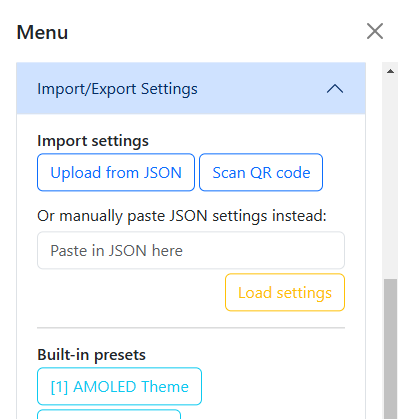
Table of contents
Options
Import settings
There are a few methods of importing your settings. You can upload directly from a JSON file, scan a QR code, paste the raw JSON data into a text field, or re-import your saved settings from localStorage.
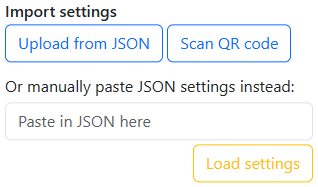
After uploading your settings, Online Web Clock will automatically verify and load all of your settings.
For an insight into how the site formats and verifies JSON settings, refer to the code in the GitHub repository.
For more info on scanning and generating QR codes, skip to the QR Codes section.
Built-in presets
The menu includes a few presets which you can import. They contain pre-configured settings for different themes and styles.
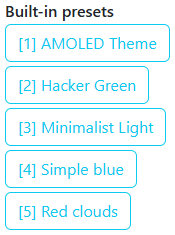
You can also type the number next to the respective preset name to import it. For instance, you can press the number “1” on your keyboard to import the “AMOLED Theme” preset.
As they are not automatically preloaded, you may need an internet connection to load a preset if you are not serving the site locally and the presets are not already cached.
Export settings
As explained above, just like with importing, you may export your settings with these same methods: downloading a JSON file, generating a QR code, copying directly to your clipboard, or saving to localStorage.
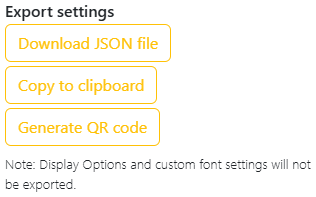
When saved locally to your browser (localStorage), your settings will be automatically imported the next time you visit the site. They can be cleared if you Ctrl+Click on this button.
Base keys
Below is a table of the top-level keys in the settings JSON object:
| Key | Valid values | Description |
|---|---|---|
| exportTimestamp | string | The timestamp of when the settings were exported |
| version | v1.X.X | Hardcoded version number. Do not change. |
clockConfig key
Below is a table of the subkeys of the clockConfig object and their valid values.
| Subkey | Valid values | Description |
|---|---|---|
| clockDisplay | binary, octal, decimal, hexa, emoji, roman, words, unixmillis, unixsec, unixcountdown, se_valentines, se_christmas, se_newyears, ii_christmas, ii_weekend, ii_leapyear | Clock display system |
| secondsVis | sviD, sviN | Whether to display the seconds |
| dateFormat | dfLocNumDate, dfLocAbbMon, dfLocFullMon, dfLocFullDate, dfStaFullMonthDay, dfStaAbbMonthDay, dfStaDayFullMonth, dfStaDayAbbMonth, dfStaFullMonthYear, dfStaYear, dfStaQuarterYear, dfStaDayOfYear, dfStaWeekDay, dfOff, unset | Date display format |
| dateAlign | dpoL, dpoC, dpoR | Alignment of the date |
| borderMode | btyD, btyR, btyB | Type of border, such as bottom, box, or disabled |
| borderStyle | solid, dashed, dotted, double | Style of the border |
| timeBar | tbarWeekday, tbarMonth, tbarDay, tbarHour, tbarSec, tbarNone | Type of time bar display |
| customNote | <String> | Custom note text to display |
| customNoteAlign | nalT, nalB | Alignment of the custom note |
For more info on these settings, see Date and Time.
fontConfig key
Below is a table of the subkeys of the fontConfig object and their valid values.
| Subkey | Valid values | Description |
|---|---|---|
| fontFamily | unset, <Font name> | Font family to set |
| fontStyle | fsR, fsI | Font style |
| fontWeight | fweL, fweN, fweB | Font weight |
| fontSize | 6vw, 8vw, 10vw, 12vw, 14vw, 18vw | Font size |
| dropShadow | <Integer from 0 to 10> | Size of the drop shadow |
| strokeWidth | <Integer from 1 to 5> | Width of the stroke |
| strokeColor | unset, <Hexadecimal color value> | Color of the stroke |
For more info on these settings, see Font Customization.
colorTheme key
Below is a table of the subkeys of the colorTheme object and their valid values.
| Subkey | Valid values | Description |
|---|---|---|
| colorMode | fademode, solidmode, imgmode | Color mode setting |
| solidColor | <Hexadecimal color value> | Background color for Solid mode |
| textColorMode | tcovD, tvovO | Whether text color override is enabled |
| textColorValue | <Hexadecimal color value> | Text color value |
| bgImage | unset, <Image URI> | Background image URI scheme |
| bgImageSize | unset, auto, cover, stretch | Background image sizing |
| bgImageBlur | unset, <Integer from 0 to 10> | Background image blur size |
For more info on these settings, see Background Theme.
timezoneWindows key
Below is a table of the subkeys of the timezoneWindows object and their valid values. This object will only be present if at least one timezone window is enabled.
tz1
| Subkey | Valid values | Description |
|---|---|---|
| timezone | <Timezone IANA string> | Timezone identifier |
| clockMode | 0, 1 | Time display mode (12-hour or 24-hour) |
| dateFormat | dfLocNumDate, dfLocAbbMon, dfLocFullMon, dfLocFullDate, dfStaFullMonthDay, dfStaAbbMonthDay, dfStaDayFullMonth, dfStaDayAbbMonth, dfStaFullMonthYear, dfStaYear, dfStaQuarterYear, dfStaDayOfYear, dfStaWeekDay, dfOff, unset | Date display format |
| fontFamily | unset, <Font name> | Font family to set |
| fontStyle | normal, italic | Font style |
| fontWeight | light, normal, bold | Font weight |
| x | <Integer> | X position offset |
| y | <Integer> | Y position offset |
| width | <Integer> | Width of the window |
| height | <Integer> | Height of the window |
tz2
This subkey is populated only if a second timezone window is enabled. It has the same structure and valid values as tz1.
QR Codes
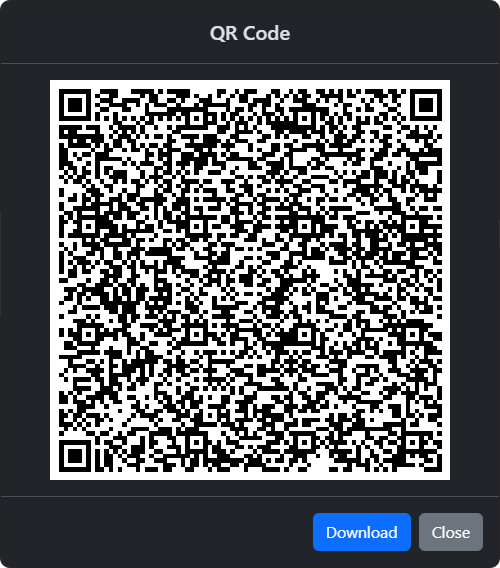
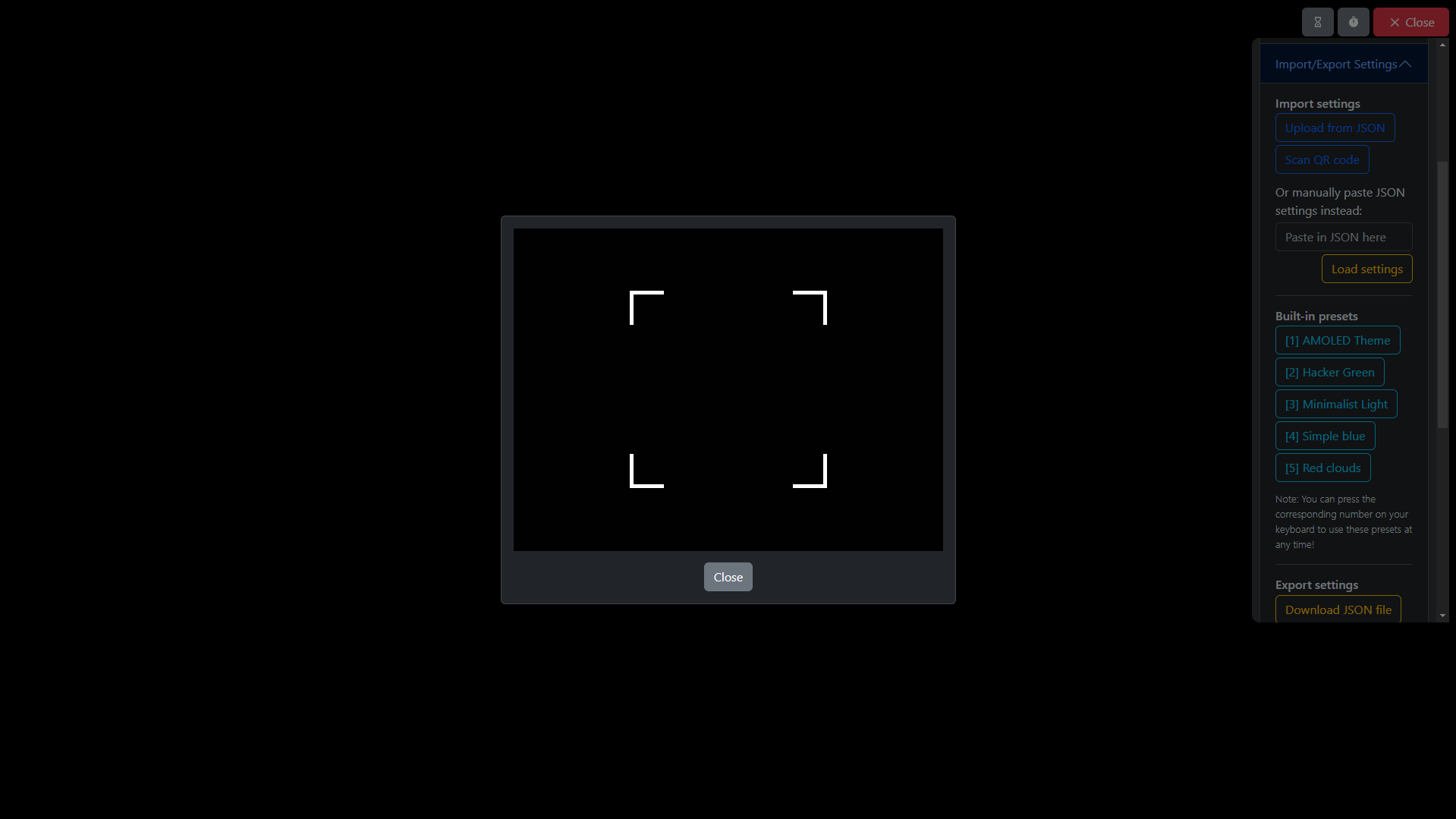
Settings can be exported as a QR code, which can then be scanned from the Import settings section to import them back.
Exported QR code
Scanning a QR code
QR codes have a maximum capacity of 3KB of data. If your JSON export exceeds this limit—for example, if you have a background image set—the QR code cannot be generated.
What isn’t exported?
- Time Zone
- Time Refresh Method
- Custom Font
- Color Transition length
- Weather widget settings (Use URL Parameters to set these automatically)
- Display Options (Use URL Parameters to set these automatically)
Why? Not all settings are meant to be exported. For instance, the time zone is set automatically based on your system settings, and not all custom fonts are available on everyone’s device.
For Display Options specifically, they are meant to be tailored to your own preferences and device requirements and are not designed to be exported as a result.
Additionally, you can’t (and shouldn’t) export your weather settings as they contain your API key and precise location, which should obviously be kept private!