Date and Time
The Date and Time section in the menu panel allows you to change how the clock looks and behaves.
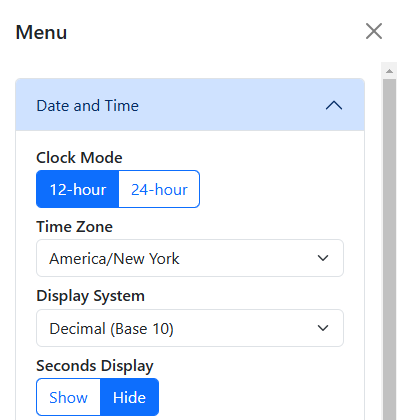
Table of contents
Options
Clock Mode
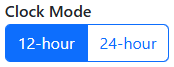
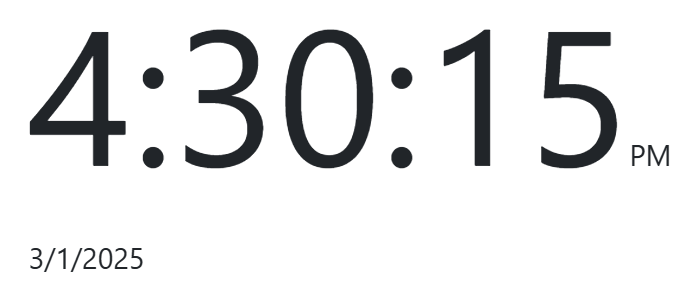
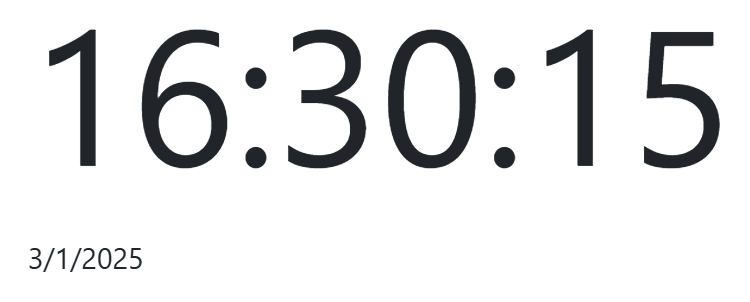
This radio button allows you to change the clock mode between 12-hour and 24-hour time.
When using the 24-hour clock mode, the AM/PM indicator is hidden.
| 12-hour mode | 24-hour mode |
|---|---|
 |  |
As of version 1.6.0, the clock mode is set automatically based on your system’s current setting.
Time Zone
You can adjust the clock display’s timezone with this dropdown. By default, your current time zone is selected.
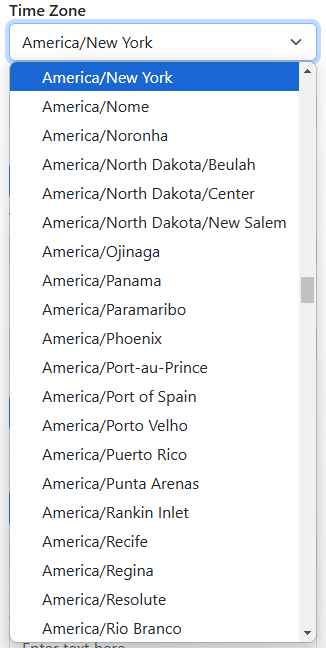
The dropdown menu is automatically populated with the time zones your browser supports via Intl.supportedValuesOf('timeZone').
Timezone Windows
New in v1.8.0
The Timezone Windows option lets you enable up to two draggable windows that display the current time in different time zones.
When creating a new window, the currently selected font family and timezone is used for that window. These settings are static and will persist for that window even if you change the main clock’s settings later on.
Display System
This menu allows you to change how the clock is displayed, offering different radix systems, conversions, and a few experimental options.
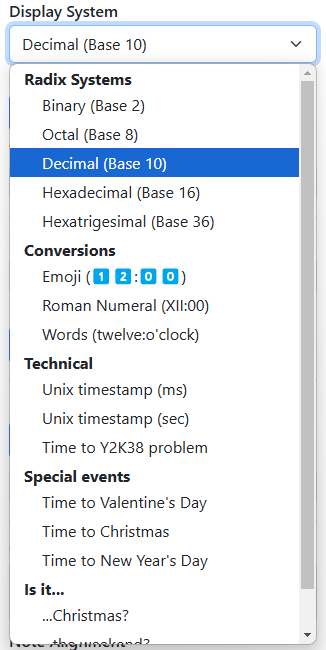
Radix Systems
Choosing a different radix system will change the number of digits used to represent numbers:
| Radix | Description |
|---|---|
| Binary (Base 2) | Base 2, using only the digits 0 and 1. Example: 6:30 is displayed as “110:11110”. |
| Octal (Base 8) | Base 8, using the digits 0 to 7. Example: 6:30 is displayed as “6:36”. |
| Decimal (Base 10) | Base 10, the default way to represent numbers. |
| Hexadecimal (Base 16) | Base 16, using the digits 0 to 9 and the letters A to F. Example: 6:30 is displayed as “6:1E”. |
| Hexatrigesimal (Base 36) | Base 36, using the digits 0 to 9 and the letters A to Z. Example: 6:30 is displayed as “6:U”. |
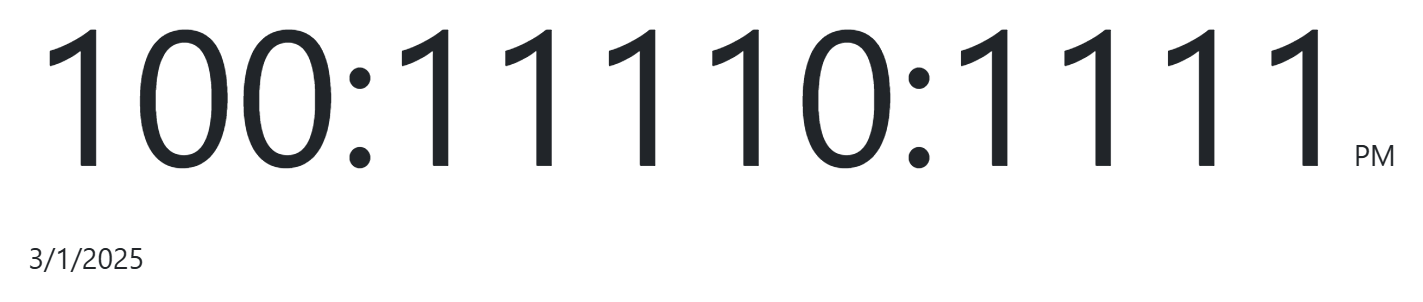
Conversions
| Conversion | Description |
|---|---|
| Emoji | Displays the time in number emoji blocks. Example: 6:30 is displayed as “6️⃣:3️⃣0️⃣”. |
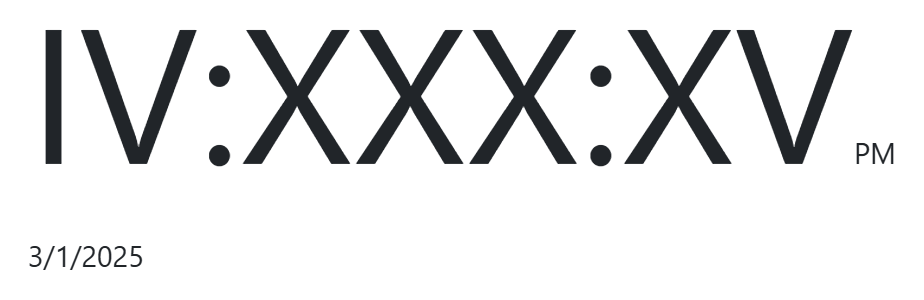
| Roman Numerals | Displays the time in Roman numerals. Example: 6:30 is displayed as “VI:XXX”. |
| Words | Displays the time in English words. Example: 6:30 is displayed as “six:thirty”. |
Technical
| Technical Display System | Description |
|---|---|
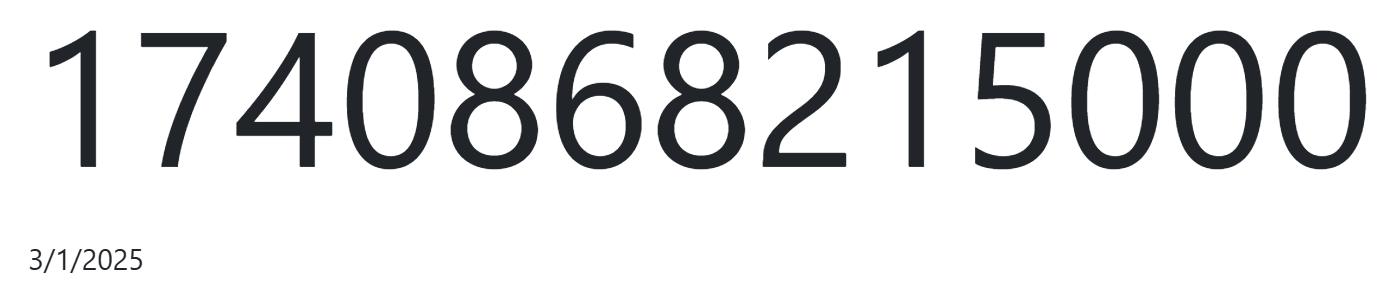
| Unix timestamp (Milliseconds) | Displays the time as the number of milliseconds since the Unix epoch. |
| Unix timestamp (Seconds) | Displays the time as the number of seconds since the Unix epoch. |
| Time until Y2K38 problem | Displays remaining time until Y2K38 problem, where computers representing time with a signed 32-bit integer will overflow after 3:14:07 UTC on January 19, 2038 and likely explode. |
Although the “Unix Timestamp (Milliseconds)” option exists, the clock display will only ever update once every second.
Time Bar
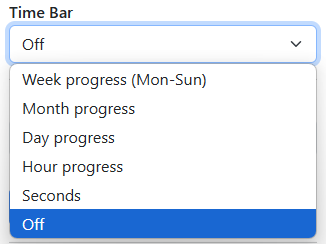
The time bar is a new addition which replaces the legacy Seconds Bar. It is a wide horizontal bar that displays the progress of time. It’s width increases as time progresses according to the chosen setting.
You cannot enable the Time Bar if a border style is selected.
| Setting | Description |
|---|---|
| Week progress (Mon-Sun) | Displays the progress through the week, from Monday through Sunday. Example: If it is Sunday, the bar will be 100% full. |
| Month progress | Displays the progress through the month. Example: If it is the 15th of the month, the bar will be 50% full in a 30-day month. The calculation changes automatically based on the number of days in the month. |
| Day progress | Displays the progress through the day. Example: If it is 6:00 PM (18:00), the bar will be 75% full. |
| Hour progress | Displays the progress through the hour. Example: If it is 15 minutes into the hour, the bar will be 25% full. |
| Seconds | Displays the progress through the minute. Example: If it is 15 seconds into the minute, the bar will be 25% full. |
Date Display
If you prefer a different date format other than the default, you can change that here. Each option is localized based on your browser’s locale and updates automatically as the date changes.
The dropdown is grouped by Localized and standard formats, the latter of which do not change based on the locale.
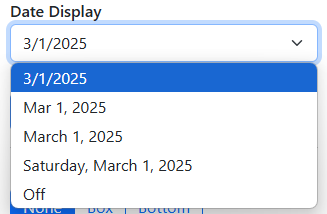
The table below lists the different tokens Luxon uses for each date format:
| Luxon format token | Description |
|---|---|
| Localized | |
| D | Localized numeric date (3/1/2025) |
| DD | Localized date with abbreviated month (Mar 1, 2025) |
| DDD | Localized date with full month (March 1, 2025) |
| DDDD | Localized date with full month and weekday (Saturday, March 1, 2025) |
| Standard | |
| MMMM d | Full month and day (March 1) |
| MMM d | Abbreviated month and day (Mar 1) |
| d MMMM | Day and full month (1 March) |
| d MMM | Day and abbreviated month (1 Mar) |
| MMMM yyyy | Full month and year (March 2025) |
| yyyy | Year (2025) |
| ‘Q’q, yyyy | Quarter and year (Q1, 2025) |
| ‘Day’ o ‘of’ yyyy | Day of year (Day 60 of 2025) |
| ‘Week’ W, ‘Day’ o | Week number and day of year (Week 9, Day 60) |
Date Alignment
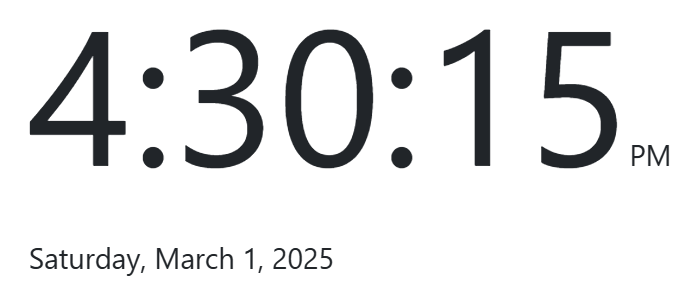
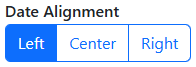
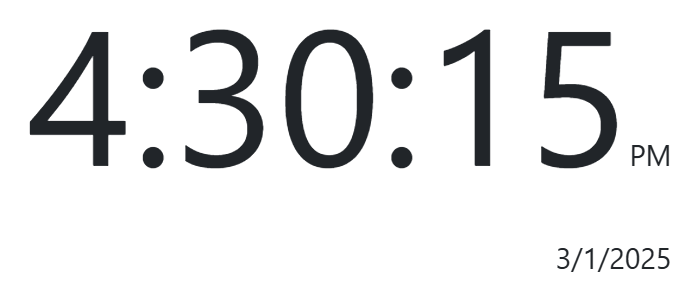
You can change the alignment of the date relative to the clock’s width. By default, the date is left aligned under the clock.
Border Style
You can set the border style of the clock to give it a sort of “frame” around the time, providing a bit of separation between the time and the date.
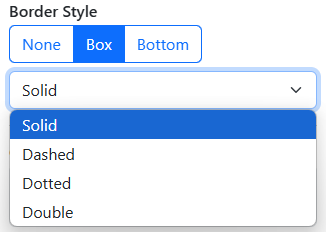
By default, there is no border style selected. You can change the border style to “Box” or “Bottom”, both of which have the “Solid”, “Dashed”, “Dotted”, and “Double” options.
You cannot select a border style if the Time Bar is enabled.
| Border Style | Solid | Dashed | Dotted | Double |
|---|---|---|---|---|
| Box | 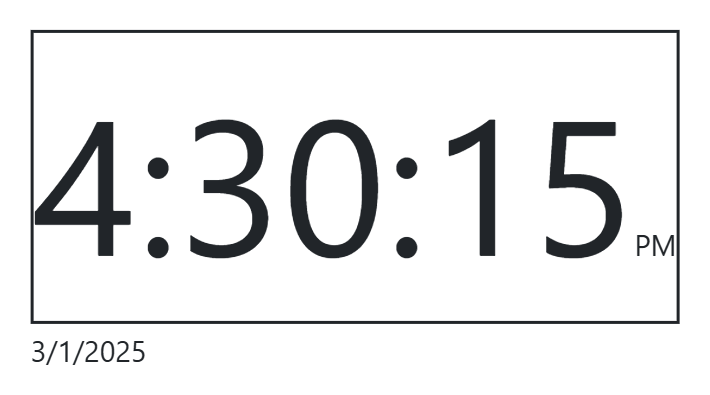 | 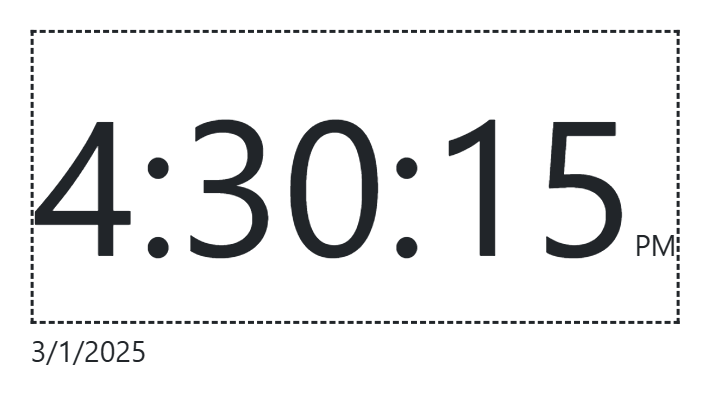 | 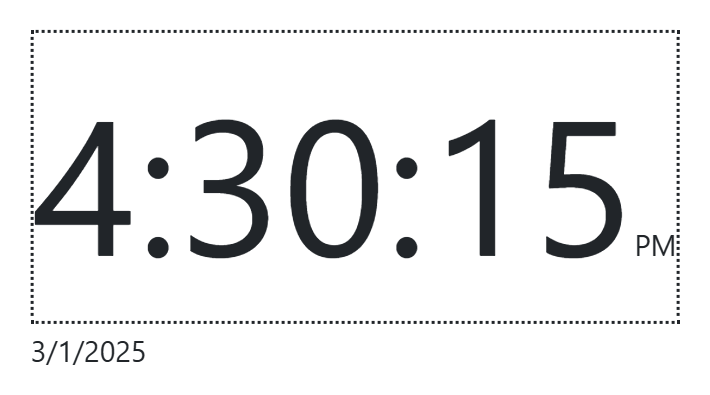 | 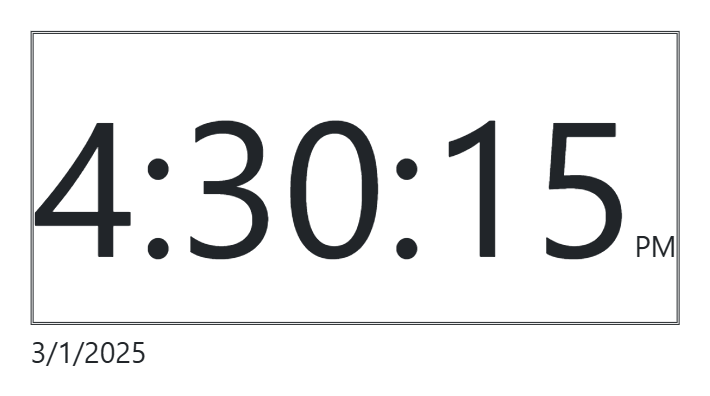 |
| Bottom | 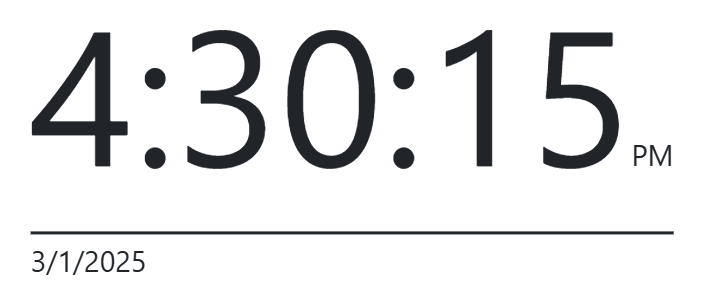 | 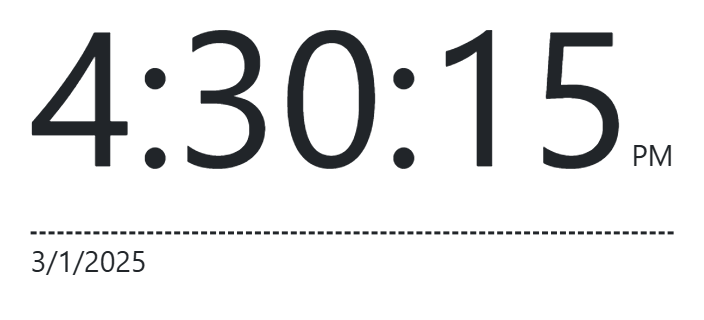 | 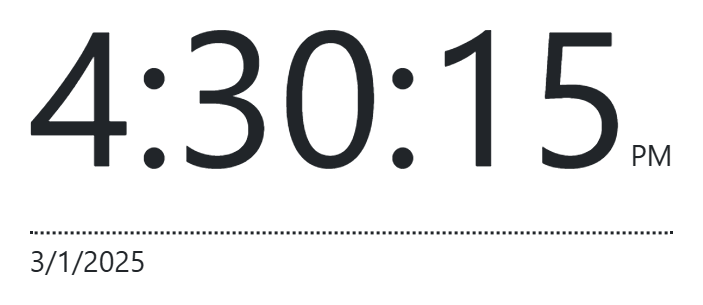 | 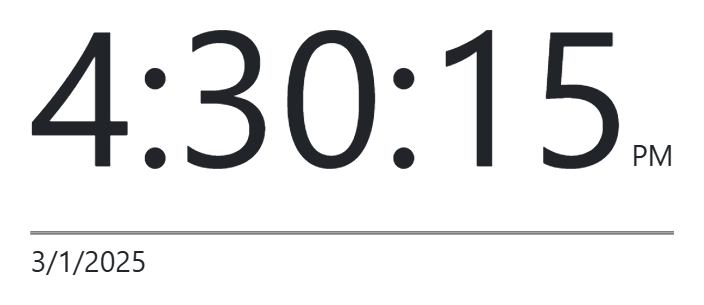 |
You may need to open the images in a new tab to see the border styles in detail.
Custom Note
You may add a custom note to the page. It can hold any text within 75 characters. A few examples of what it can be used for is quotes, reminders, jokes, etc. Additionally, you can choose between top and bottom alignment.
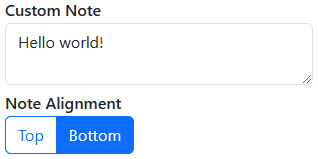
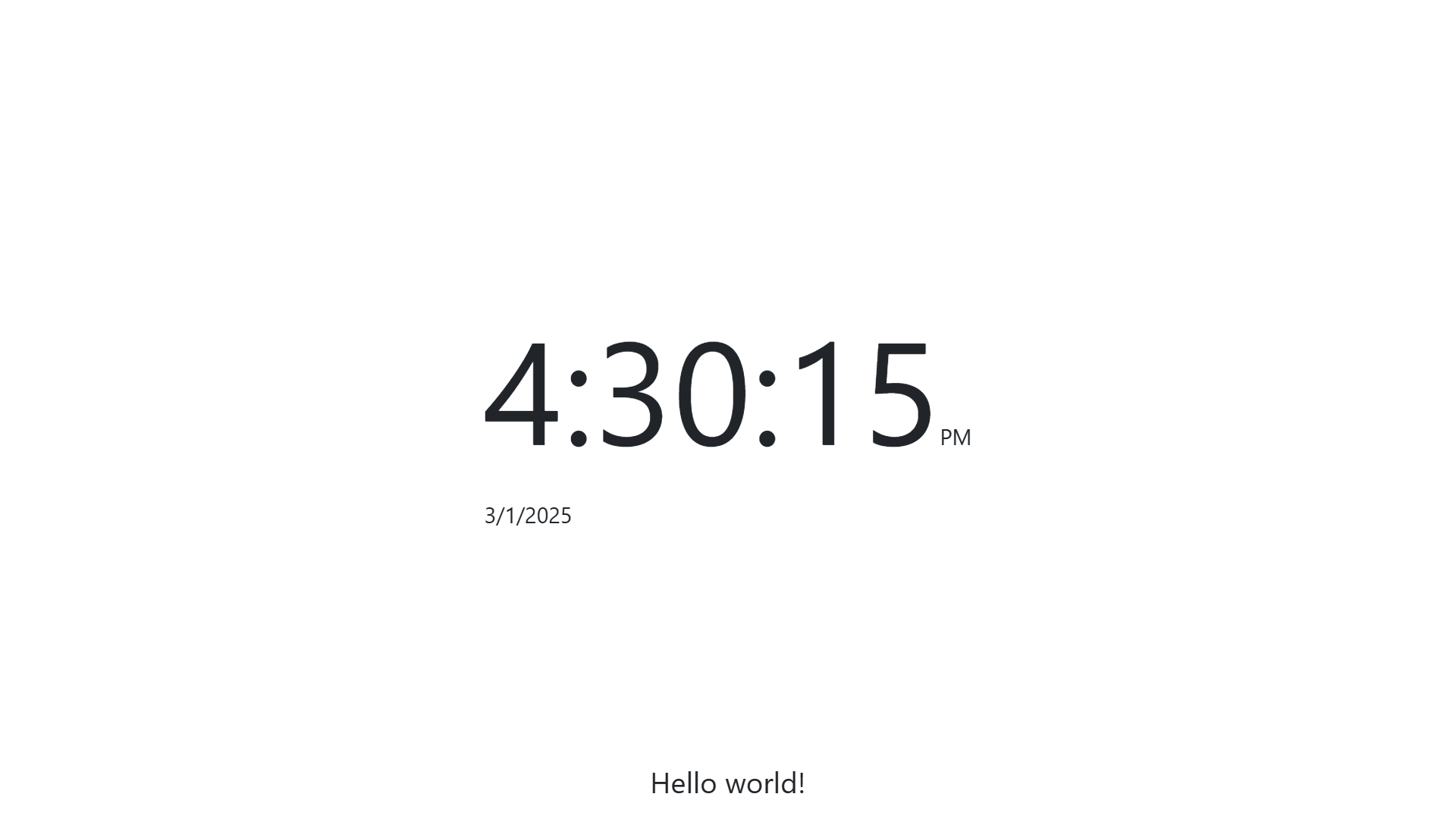
The custom note will also reflect any changes to font customization. However, font size is not applied to the custom note.
The custom note can be exported along with your other settings.